

My Products
My Products is your working view of everything you sell — products that arrived from supplier feeds and custom products you created yourself. It’s where you check content, prices, and stock, and where you make product-level changes.
Open it from Catalog → My Products.
The product grid
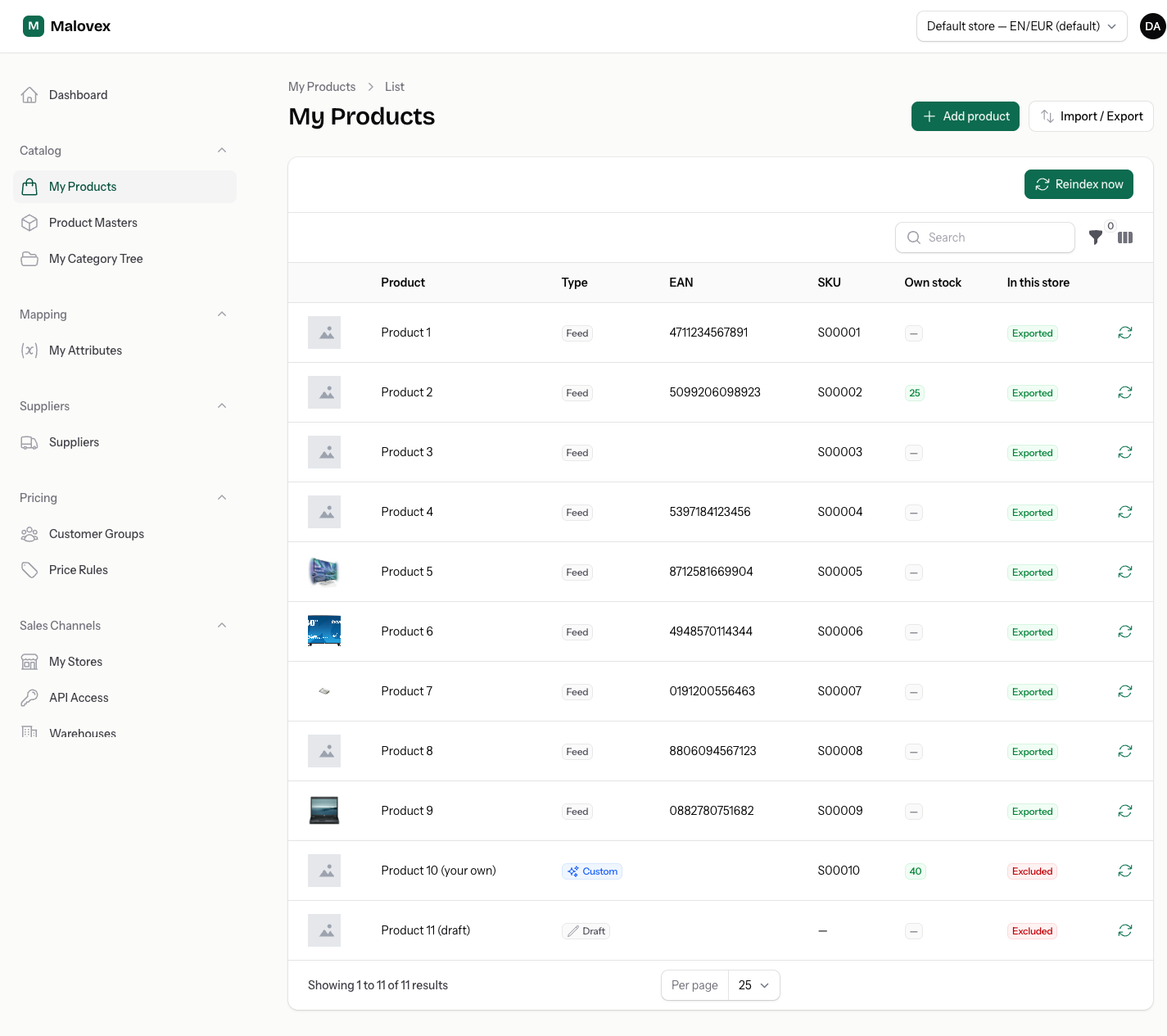
Section titled “The product grid”Each row is one product. At a glance you see:
- Image — the product photo, or a placeholder when no image has been enriched yet.
- Product — the title.
- Type — a badge showing where the product comes from: Feed (from a supplier), Custom (a published product you created), or Draft (a custom product you’re still working on).
- SKU — the product’s export code in the current store. Shows a dash until it has been assigned.
- Own stock — how many units you hold across your warehouses, highlighted when you have stock.
- In this store — whether the product is exported to the current store or excluded from it.
Finding products
Section titled “Finding products”Use the filters above the grid to narrow the list:
- Type — Custom, Draft, or Feed.
- Category, Manufacturer, and Supplier.
- Image — has an image or missing one.
- Stock — in stock or out of stock.
- Description — has a description or missing one.
The image, stock, and description filters make it easy to spot products that need attention before you export them.
The product page
Section titled “The product page”Select any row to open that product’s page. It’s the single place where everything Malovex knows about the product comes together for the current store — the content you’ll export, the resolved attributes, the final prices per customer group, and where the product is being sold from. Rather than digging through separate screens, you review and act on one product here: check what your store will publish, spot anything missing, and make product-level changes.
The page is organised into four sections, described below.
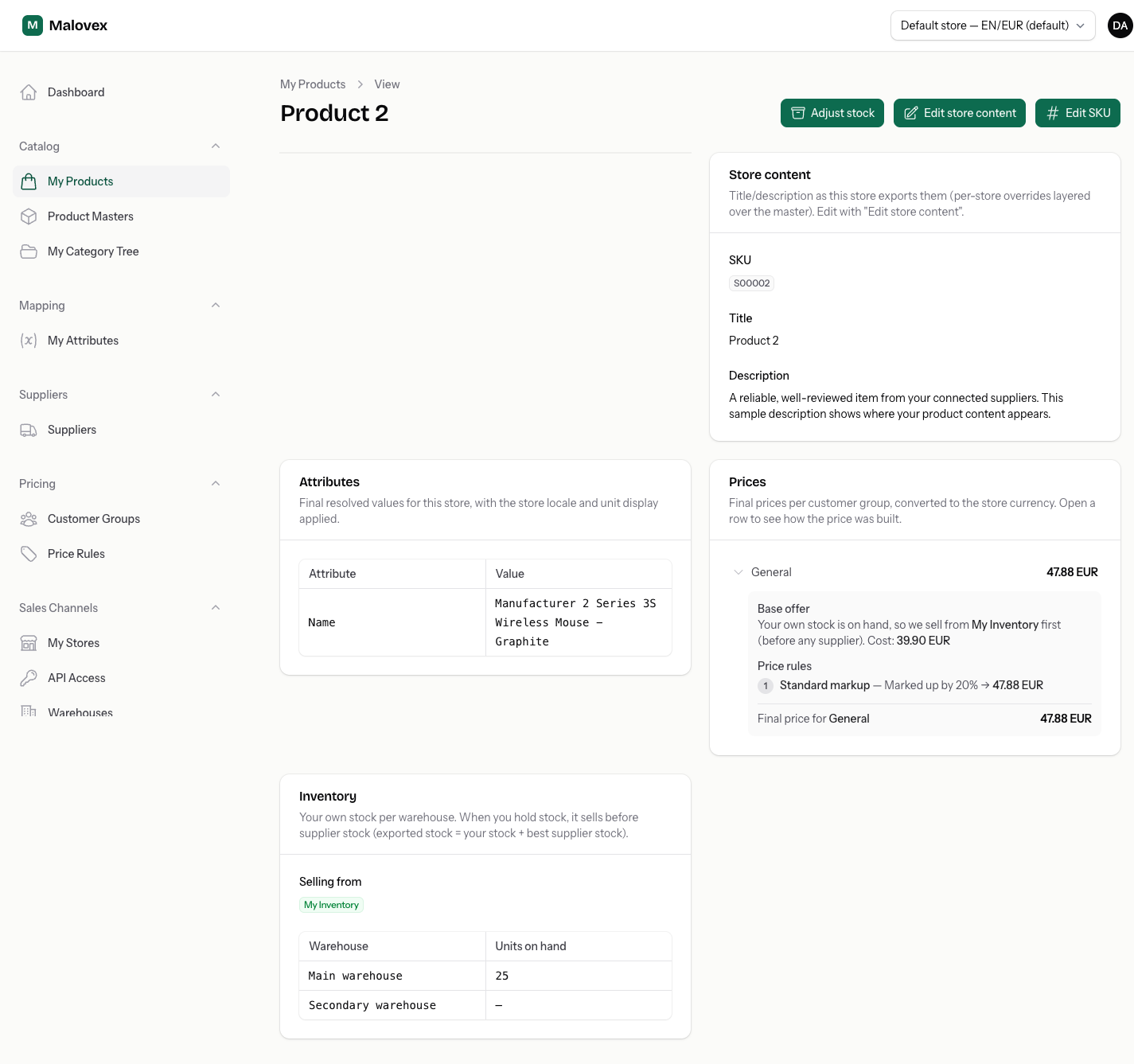
- Store content — the SKU, title, and description exactly as this store exports them, with any of your overrides already applied.
- Attributes — the resolved attribute values for this store. A badge marks where a value was changed: overridden locally (your own override) or global fix (a correction applied for everyone); values with no badge come straight from the product’s sources.
- Prices — the final price for each customer group, in the store currency. Expand a row to see how the price was calculated.
- Inventory — a Selling from indicator (your own stock, a named supplier, or no offers) and your own stock per warehouse.
Actions on the page
Section titled “Actions on the page”Depending on the product, the page offers:
- Adjust stock — set your own stock and cost per warehouse, for any product you sell.
- Edit store content — override or translate the title, description, and attributes for your stores.
- Edit SKU — set the export SKU per store by hand (see below).
- For custom products: Edit product, Publish / Revert to draft, and Delete product.
Editing a SKU by hand
Section titled “Editing a SKU by hand”Malovex generates SKUs from your SKU patterns, and a SKU never changes once assigned. If you need a specific code for a product, use Edit SKU on the product page: you can set the SKU per store, and Malovex enforces that it’s unique within each store. A SKU you set by hand sticks — recalculating your catalog never overwrites it.
Adding a product
Section titled “Adding a product”Select Add product to open the dedicated create page for a custom product — one that doesn’t come from a supplier feed. The button shows how many product slots you have left on your plan.
Recalculating a product
Section titled “Recalculating a product”Malovex keeps prices, categories, and attributes up to date automatically after each sync. When you want to see a change reflected right away, you can recalculate on demand:
- Reindex on a single row recomputes just that product, immediately.
- Reindex now recomputes your whole catalog. To avoid overloading, this has a short cooldown — if you’ve run it recently, Malovex tells you how long to wait.