

Stores & Locales
A store is a sales channel — one finished catalog that your storefront reads through the API. Every store has its own locale and currency, so the same product can go out translated and priced correctly for each market you sell in.
You manage stores under Sales Channels → My Stores in the panel.
What a store controls
Section titled “What a store controls”Each store carries a small set of settings that shape everything it exports:
| Setting | What it does |
|---|---|
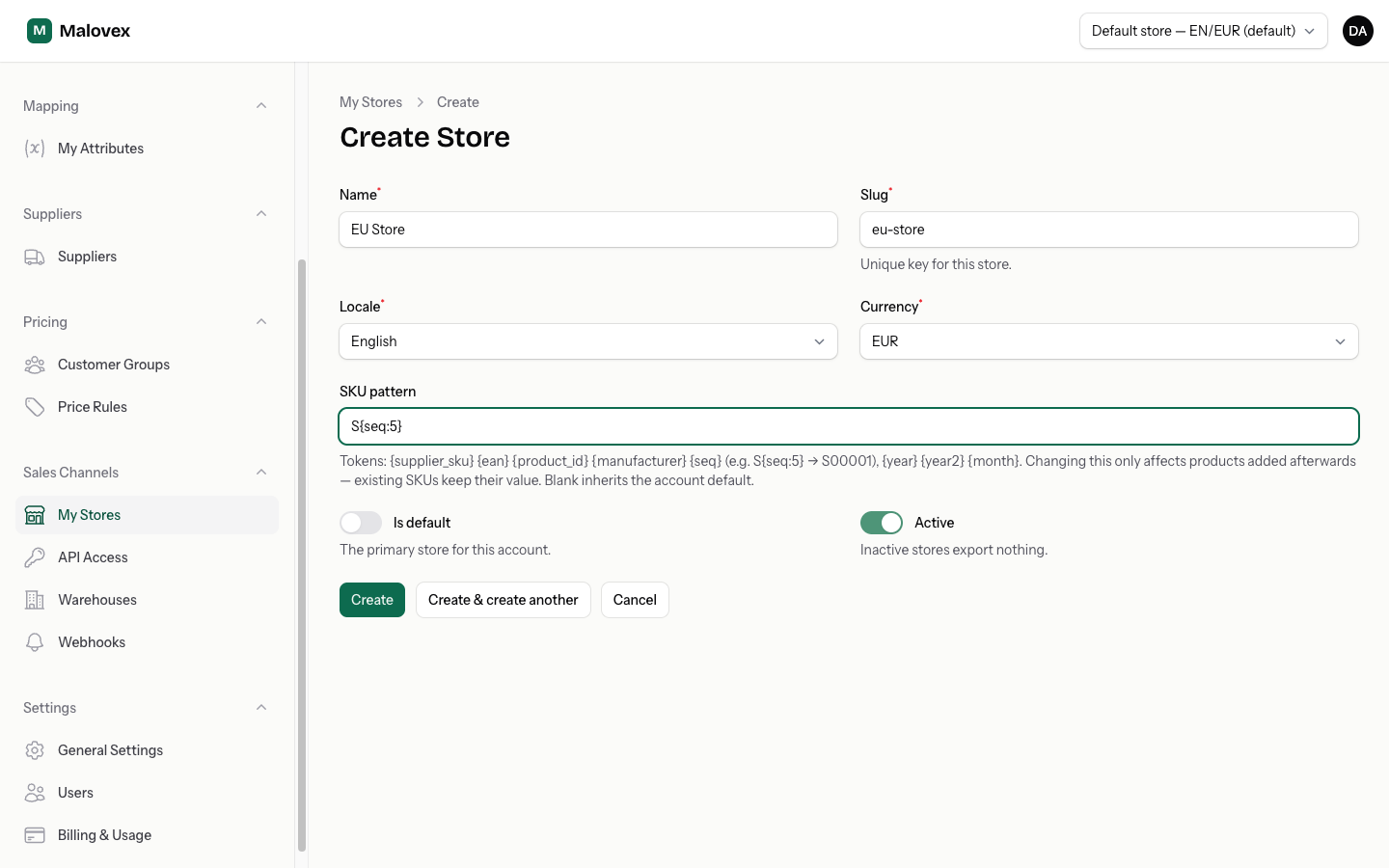
| Name | A label for you — e.g. “EU Store”, “UK Store”. |
| Slug | A short, unique key (letters, numbers, dashes). You pass it to the API as ?store=. |
| Locale | Which language your product titles, descriptions, and attribute labels come out in. |
| Currency | The currency every price in this store is converted to. |
| SKU pattern | An optional per-store override of your account’s default SKU pattern. See SKU Patterns. |
| Default | Marks the primary store. Used whenever no store is specified. |
| Active | Inactive stores export nothing. |
Available currencies are EUR, PLN, USD, GBP, SEK, and CZK.
Available locales
Section titled “Available locales”The locale picker offers over forty languages — it’s searchable, so just start typing a language’s name. The full list:
Arabic, Bengali, Bulgarian, Catalan, Chinese (Simplified), Croatian, Czech, Danish, Dutch, English, Estonian, Finnish, French, Georgian, German, Greek, Hebrew, Hindi, Hungarian, Indonesian, Italian, Japanese, Kannada, Korean, Latvian, Lithuanian, Macedonian, Malay, Malayalam, Marathi, Norwegian, Persian, Polish, Portuguese, Romanian, Serbian, Slovak, Slovenian, Spanish, Swedish, Tamil, Telugu, Thai, Turkish, Ukrainian, and Vietnamese.
English is the default. Translated content quality varies by language — how much of a product comes out translated depends on how much translated data exists for it — and anything missing in a store’s locale falls back to your neutral (English) content, so a product always has a title and description.
How locale drives content
Section titled “How locale drives content”The store’s locale selects which translation of your catalog is served. When Malovex builds a store’s catalog, it resolves each product’s title, description, and attribute labels into that store’s language, drawing on the translated content from your suppliers and any content you’ve edited yourself.
If a translation isn’t available in the store’s locale, Malovex falls back to your neutral (untranslated) content so a product always has a title and description.
How currency drives prices
Section titled “How currency drives prices”Each store exports prices in a single currency. Supplier costs — which may arrive in different currencies — are converted to your store’s currency using foreign-exchange rates before your price rules run. By the time a price reaches the API it is already in the store’s currency, so your storefront never has to convert anything.
See Currency & FX for how rates are managed.
Creating a store
Section titled “Creating a store”-
Go to Sales Channels → My Stores and choose New store.
-
Give it a name and a slug (the slug must be unique within your account).
-
Pick the locale and currency for the market this store serves.
-
Optionally set a SKU pattern to override your account default, and toggle Active.
-
Save. Malovex rebuilds this store’s catalog — resolving content into its locale and converting prices into its currency.
The default store
Section titled “The default store”Every account has exactly one default store. It’s used whenever no store is specified — for example, an API request without a ?store= parameter reads the default store.
The default store cannot be deleted. To retire it, mark a different store as the default first, then delete the old one.
Switching stores in the panel
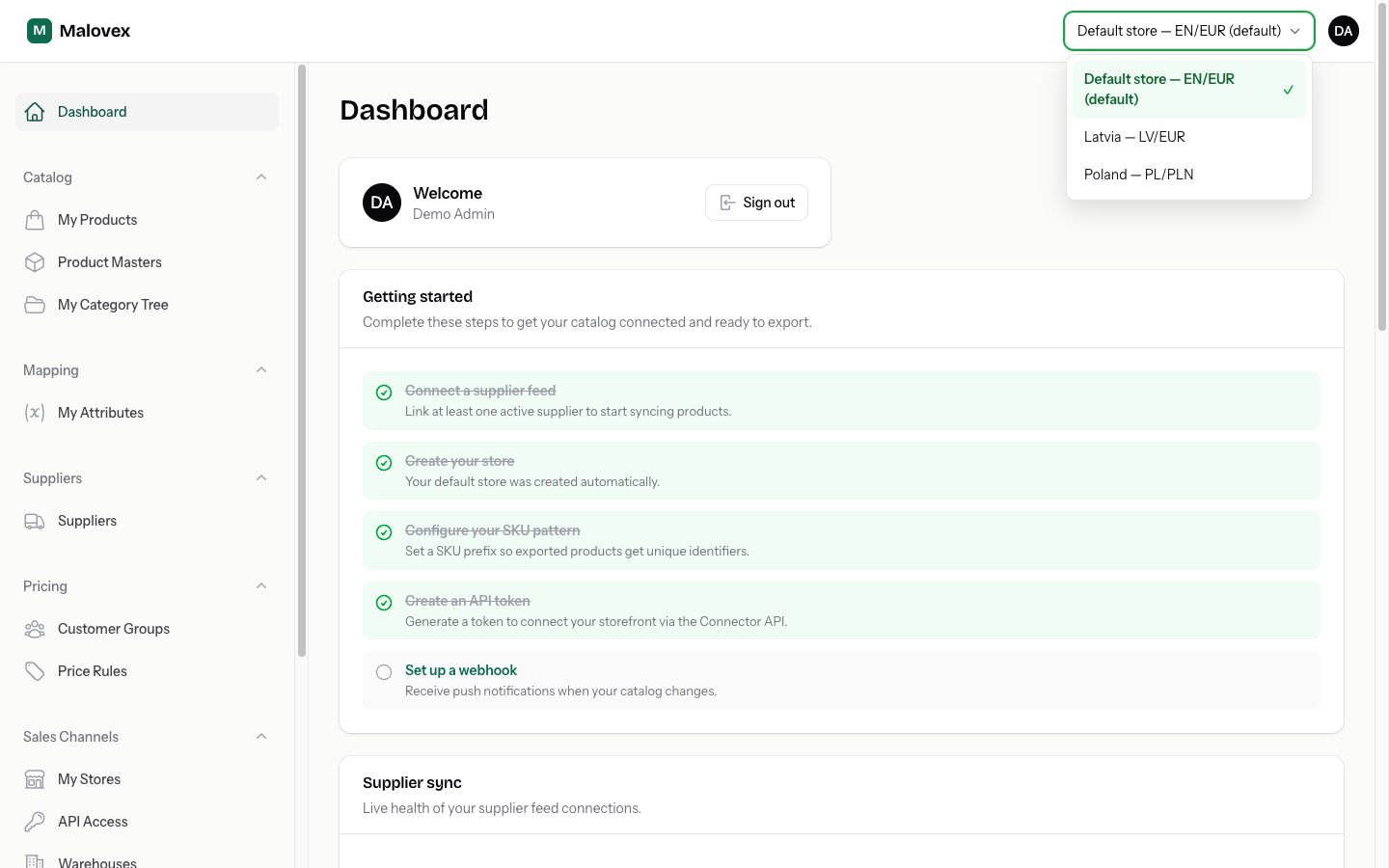
Section titled “Switching stores in the panel”If you have more than one store, a store switcher appears in the panel’s top bar. It shows each store as Name — LOCALE/CURRENCY, with the default store marked. Your selection sticks as you move between pages, so screens like My Products preview the store you’re working in.
The switcher is hidden when you only have one store.
How many stores you get
Section titled “How many stores you get”Your plan sets how many stores you can create. You can add more capacity with the Stores add-on.
| Plan | Included stores |
|---|---|
| Starter | 1 |
| Pro | 5 |
| Enterprise | 100 |
When you reach your limit, the New store button is unavailable until you upgrade or add capacity. See Plans & Add-ons.